Troubleshooting palm scan issues
|
|
This sub-section is only applicable at PVTC Selects and PVTCs equipped with an admissions tablet. Pearson contacts test centers if they must have the equipment installed. |

|
|
When an admissions tablet fails, any candidates testing that same day are allowed to test. However, candidates scheduled for the following five days are not allowed to test and need to be rescheduled. |
A working admissions tablet is required to capture a palm scan. If the admissions tablet is not working, it may be due to a malfunctioning device or to hardware or software issues on the workstation. (Note that a palm scan match failure is not considered a technical issue. For more information, see Failed palm scan verification during admissions and Checking palm scan in Entry Monitoring).
|
|
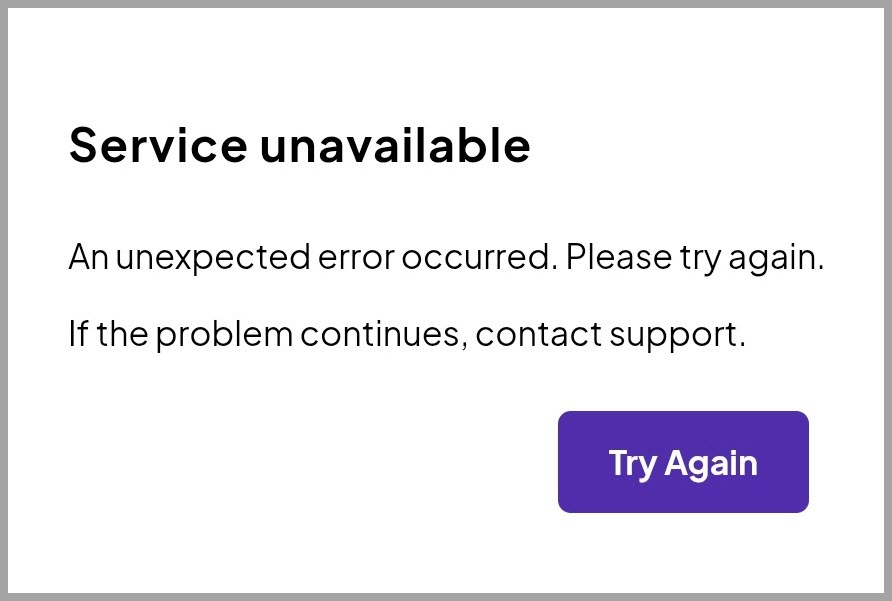
When technical issues occur, you may see a Service unavailable message on the admissions tablet. If you see this message, select Try Again. If nothing happens after selecting this button two times, continue to step 1 of the process below.
|

Follow these steps when the admissions tablet is not working correctly:
- Close the Admissions Manager application on the admissions tablet.
- Swipe up from the bottom on the admissions tablet and select the App Switcher ||| button.
- Select Close all. You are returned to the admissions tablet desktop.
- Open the Admissions Manager application on the admissions tablet and log in again.
- Retry the palm scan process:
- If you are attempting to enroll a first-time candidate, see Steps to capture palm scan for enrollment.
- If you are attempting to verify a returning candidate during admissions, see Steps to capture palm scan for verification during admissions.
- If you are attempting the alternate enrollment process, see Failed palm scan verification during admissions.
- If you are attempting to verify a candidate during entry or exit monitoring, see Checking palm scan in Entry Monitoring.
If retrying the palm scan works, do not create a case.
- If retrying the palm scan fails, contact VSS immediately. VSS will try to help you get the admissions tablet working again.
- Depending on the issue, VSS may direct you to use the backup palm scan process (see Backup palm scan process). Do not use the backup palm scan process unless VSS directs you to do so.
- VSS will determine whether a new admissions tablet is needed. If so, VSS will create the case to request the new device.
- If VSS cannot resolve the issue and did not direct you to use the backup palm scan process, follow these steps:
- Administration workstation (enrollment, verification, or alternate enrollment): Compare the photo on the ID to the candidate in front of you.
- If the photo matches, skip the palm scan step and continue the admission process. (If a message directs you to contact VSS in order to obtain an authorization code to skip the step, see Skipping a mandatory admission step.) Then continue to step 6.
- If the candidate does not appear to be the same person, complete all remaining admission steps to collect admissions data, but do not allow candidate to test and do not revoke the admission. Also, complete the following process:
- Create a copy of the candidate's primary ID.
- Create a case, selecting these options:
Exam delivery
Candidate error or misconduct
- Attach the copy of the candidate's ID to the case if possible.
- Contact VSS and ask them to retrieve the collected admissions data for the candidate and attach it to the case.
- Continue to step 6.
- Proctor workstation (entry or exit monitoring): Follow the process described in Backup entry monitoring procedure. Then continue to step 6.
- Regardless of the outcome after contacting VSS, create a case to report that a palm scan issue affected the candidate's appointment. Select these options:
Admissions/Check-in (for palm scan issues that occur during admissions) or Exam delivery (for palm scan issues that occur during entry or exit monitoring)
Palm failure
Palm scan failure
Make sure to create a case for each candidate who is affected by the palm scan issue. Include the following information in the case:
- Explain which palm scan process you were trying to follow when the issue occurred (enrollment, verification during admissions, alternate enrollment, or verification during entry or exit monitoring).
- Explain what occurred on the screen (admissions tablet and/or workstation) that prevented you from capturing the palm scan.
- Explain that you contacted VSS for assistance. Indicate whether VSS was able to resolve the issue.
- If VSS could not resolve the issue, explain that you verified the candidate's ID.
|
|
If VSS directed you to use the backup palm scan process, also create a Backup admissions data case. For more information, see Backup palm scan process. |
- If you are a test administrator at a PVTC Select, contact your test center's Pearson point of contact to notify them of the situation. If you are a test administrator at a PVTC, continue to work with VSS.
The Pearson point of contact or VSS initiates the process to reschedule all candidates scheduled for the next five days.
Depending on the status of the admissions tablet shipment, other alternatives may be considered in order to resume testing. Pearson will contact your test center with further instructions.
Copyright © 2026 Pearson, Inc. or its affiliates. All rights reserved. Pearson Confidential.