Backup palm scan process
|
|
This sub-section is only applicable at PVTC Selects and PVTCs equipped with an admissions tablet. Pearson contacts test centers if they must have the equipment installed. |

Important: Do not use the backup palm scan process unless VSS directs you to do so.
The backup process includes capturing the candidate’s palm scan through the Test Admissions Equipment application. After you save the candidate's palm scan as a zip file, it must be attached to a case.
Follow these steps to capture a candidate’s palm scan through the backup process if VSS directs you to use it:
- Click Start on the Windows taskbar, point to All Programs, VUE Applications, VUE Support Tools, and click Test Admissions Equipment.
The Test Admissions Equipment window appears.
- Select Palm Scan from the drop-down list.
- Select Test to open the Standalone Palm Scan Capture Utility window.
- Pick up the admissions tablet. If the Candidate information screen is visible, select the back arrow to exit this screen and return to the Candidate finder screen.

-
Find the candidate record for the candidate who requires the backup palm scan. You have two options to do this:
-
Option 1: Scan the QR code.
-
On the admissions tablet, select Scan QR code. This turns on the admissions tablet's camera.
-
Locate the QR code, which is displayed in the Standalone Palm Scan Capture Utility window on the administration workstation computer.
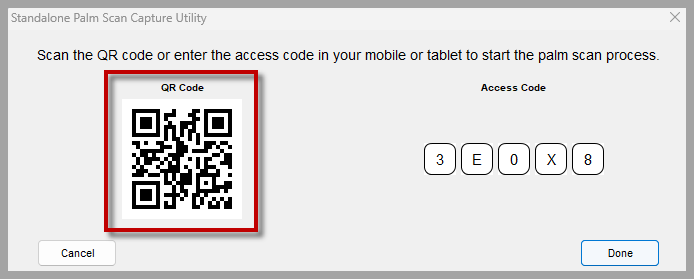
- Point the admissions tablet's camera at the QR code to scan it.
-
Option 2: Enter the access code.
- Locate the access code, which is displayed in the Standalone Palm Scan Capture Utility window on the administration workstation computer.
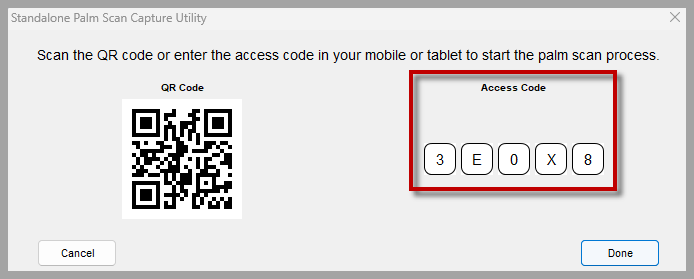
- Type the access code into the Enter access code field on the admissions tablet.
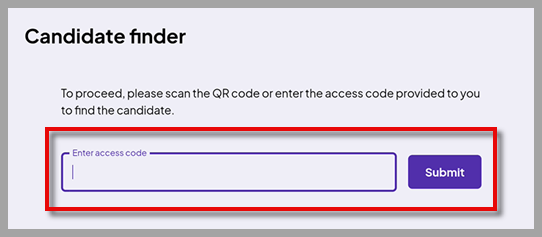
- Select Submit.
- Enter the candidate's first and last names and then select Next.
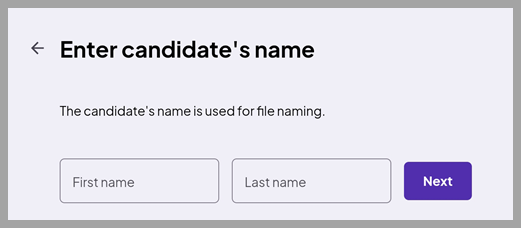
The Candidate information screen appears. The Palm capture status shows as "Not captured."
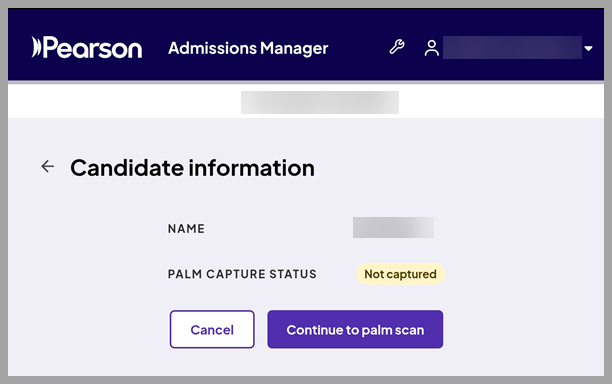
- Select Continue to palm scan.
- Follow the same steps you use to enroll a first-time candidate (see Steps to capture palm scan for enrollment).
When the left and right palm scans are completed successfully, the tablet returns to the Candidate finder screen. The following notification appears at the top of the screen: "Palm scan successfully captured for [candidate name] and stored as [zip file name].zip."
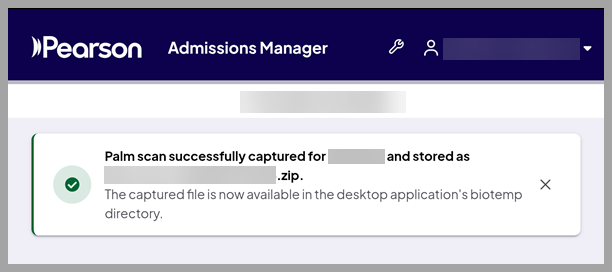
- Write down the name of the zip file so you can locate it during step 14.
- Set the admissions tablet on the desk and return to the Test Admissions Equipment application on the administration workstation computer.
- Select Done on the Standalone Palm Scan Capture Utility window.
- Close the Test Admissions Equipment application.
- Create a case, selecting these options:
Admissions/Check-in
Backup admissions data
Be sure to explain why you needed to use the backup process and that VSS directed you to use it.
- Attach the zip file that contains the palm scan to the case.
If the VUE Testing Software is installed on the C drive, you can find the zip file in the following location by default:
C:\Program Files\Pearson VUE\VUE Testing System\biotemp
Copyright © 2026 Pearson, Inc. or its affiliates. All rights reserved. Pearson Confidential.