Steps to capture palm scan for enrollment
|
|
This sub-section is only applicable at PVTC Selects and PVTCs equipped with an admissions tablet. Pearson contacts test centers if they must have the equipment installed. |

Palm scan enrollment occurs when a new or returning candidate is admitted who has never had a palm scan captured. During initial enrollment, the candidate scans each hand twice. Returning candidates who have had their palms scanned during a previous enrollment only need to scan each hand once for identity verification (see Steps to capture palm scan for verification during admissions).
Follow these steps to capture a candidate's palm scan for enrollment:
-
When the "Capture palm scan" admission step appears in Admissions Manager on the administration workstation, pick up the admissions tablet.
-
If needed, open the Admissions Manager application on the admissions tablet.
-
Log in to Admissions Manager on the admissions tablet. Use the same username and password that you use for the other VUE applications.
|
|
In addition to your username and password, Admissions Manager may also ask you to enter your test center's site ID after software updates occur. Note that the admissions tablet may take up to 30 seconds to connect to the VUE Testing System (VTS) when logging in with the site ID. |
|
|
If the admissions tablet is inactive for more than 15 minutes, you will be logged out of Admissions Manager. You will need to log in again before you can capture more palm scans. |
After logging in, you should see the Candidate finder screen.
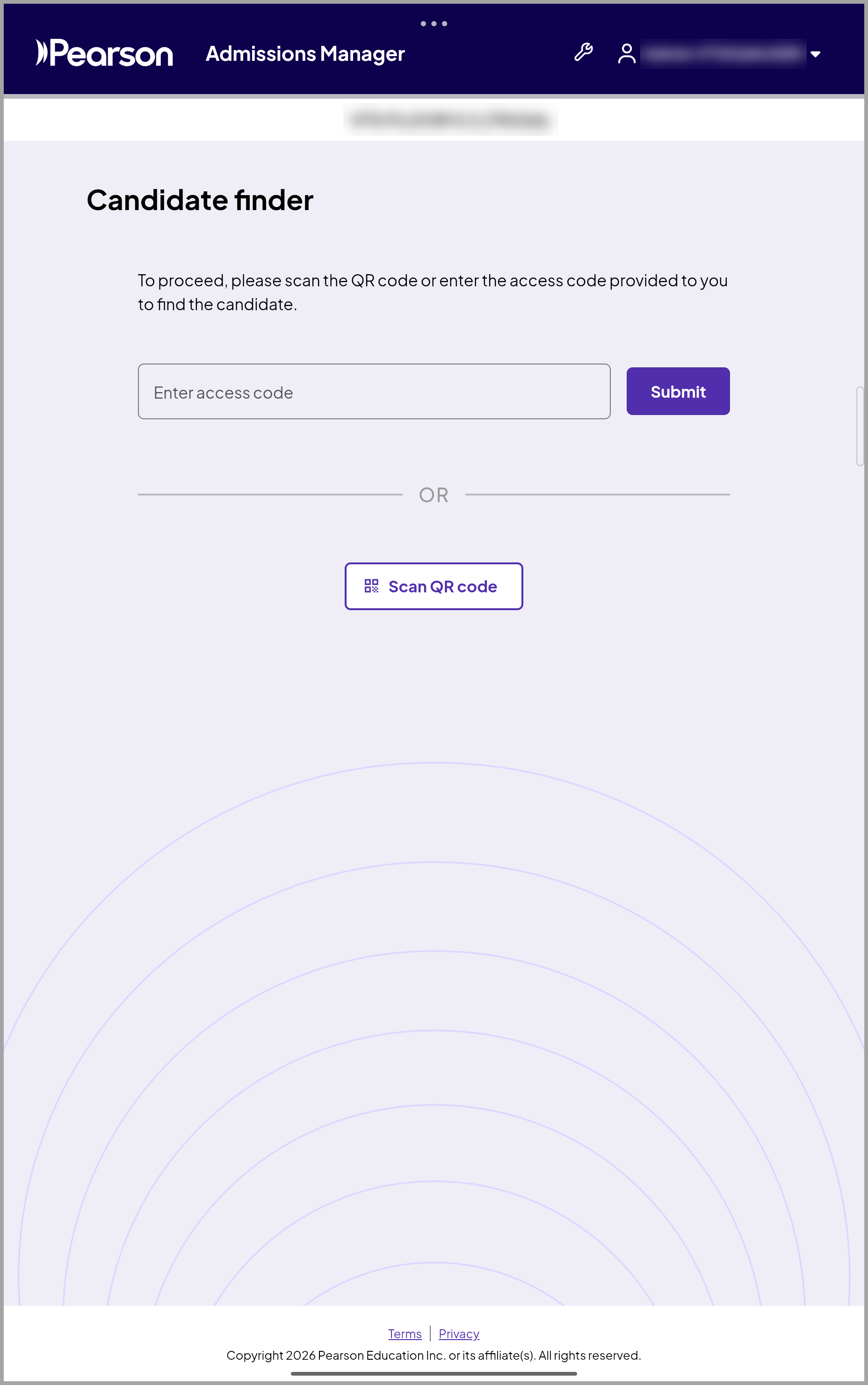
-
Find the candidate record for the candidate you are admitting. You have two options to do this:
-
Option 1: Scan the QR code.
-
On the admissions tablet, select Scan QR code. This turns on the admissions tablet's camera.
-
Locate the QR code, which is displayed in Admissions Manager on the administration workstation computer.
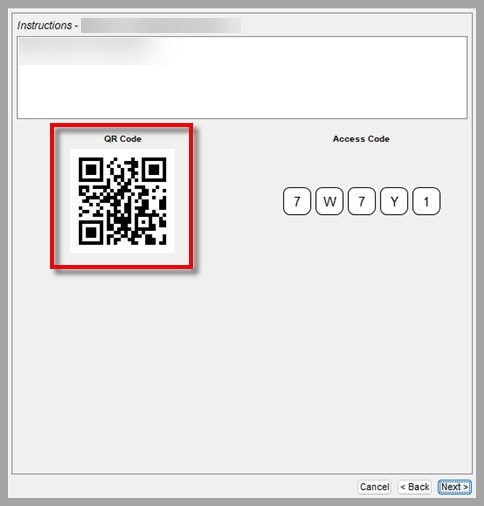
- Point the admissions tablet's camera at the QR code to scan it.
-
Option 2: Enter the access code.
- Locate the access code, which is displayed in Admissions Manager on the administration workstation computer.
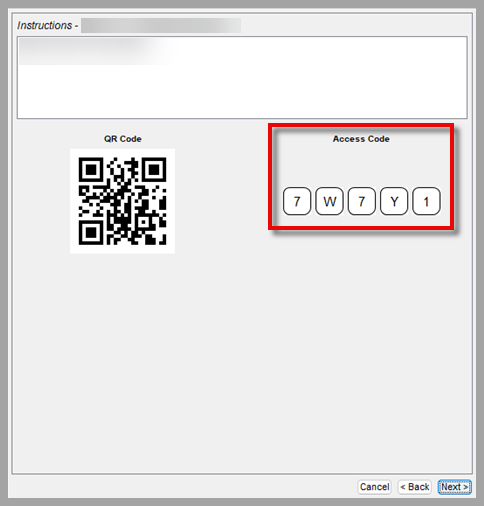
- Type the access code into the Enter access code field on the admissions tablet.
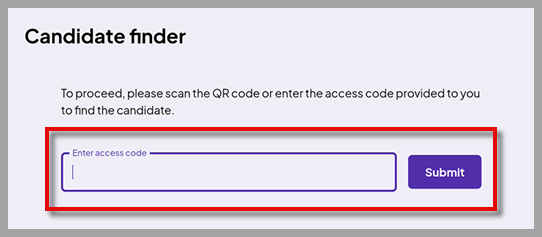
- Select Submit.
When the admissions tablet finds the candidate record, the Candidate information screen appears. The Palm capture status shows as "Not captured."
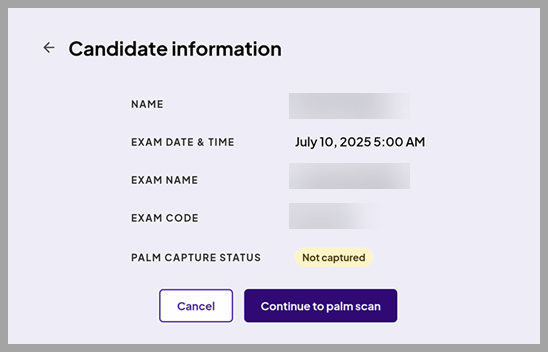
- Confirm that the candidate's name and exam are correct on the screen.
If the candidate's name and exam are not correct, select Cancel. Do not scan the candidate’s palms. Return to Admissions Manager on the administration workstation and verify that you selected the correct candidate. If needed, cancel the admission and restart the process for the correct candidate.
- If the candidate's name and exam are correct, select Continue to palm scan.
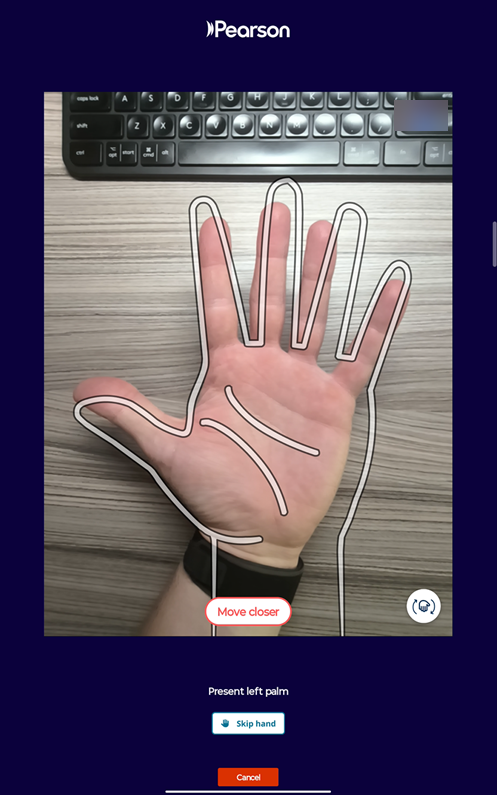
The Present left palm hand outline appears.

|
|
The admissions tablet assumes that the candidate is across the desk from the test administrator. However, you can scan the candidate's palm from either side of the administration workstation desk. To switch the orientation of the palm outline on the admissions tablet's screen, select the Toggle palm scan view button:
|

- Ask the candidate to place their left hand flat on the desk with their palm facing up. Tell the candidate to extend their fingers and keep their hand inside the outline on the screen.
- Hold the admissions tablet above the candidate’s hand and follow the instructions on the screen. If needed, move the admissions tablet closer or farther away from the candidate’s hand.
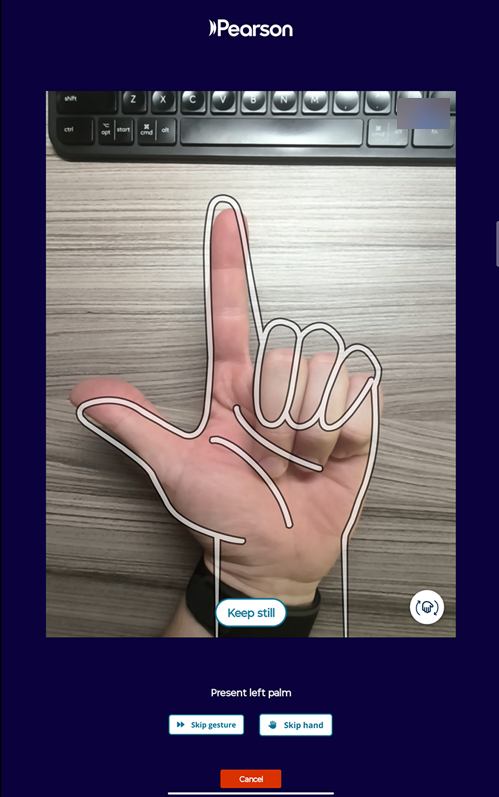
The admissions tablet scans the candidate’s open palm with their fingers extended. Once the open palm has been scanned, the hand outline changes to a randomized gesture for the candidate to copy. During enrollment, the admissions tablet prompts the candidate to repeat this process, scanning their open palm and a randomized gesture twice in total.
|
|
If the candidate is unable to copy a gesture on the screen due to an injury or medical condition, select Skip gesture. If the candidate is able to copy one of the other available gestures, no case is needed. |
|
|
The admissions tablet cannot scan the candidate's palm in these situations:
In these situations, select Skip hand. Create a case explaining why the palm scan was skipped for that hand. When you create the case, select these options: Admissions/Check-in Palm failure Palm scan match failure The admissions tablet will only allow you to skip one hand. If both hands cannot be scanned, the candidate must have approval from the exam sponsor to waive the palm scan capture entirely (see Admissions data waivers). |
When the left palm scan is completed successfully, the screen turns blue and a check mark appears. After a moment, the Present right palm hand outline appears next.
- Ask the candidate to place their right hand flat on the desk with their palm facing up. Tell the candidate to extend their fingers and keep their hand inside the outline on the screen.
Like the left palm, the admissions tablet scans the candidate’s open palm, directs the candidate to copy a randomized gesture, and then repeats the process.
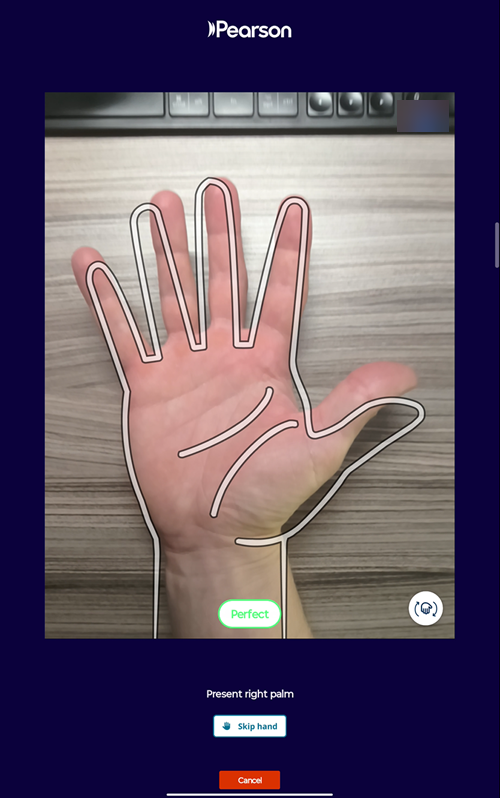
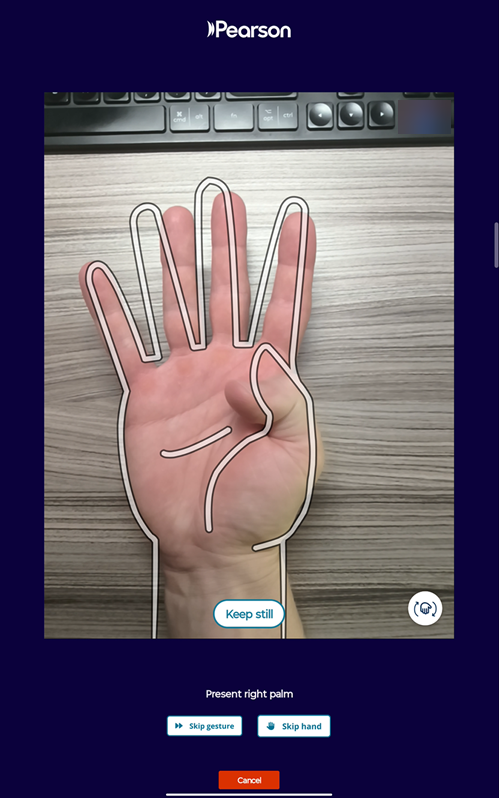
When the right palm scan is completed successfully, the screen turns green and a check mark appears. After a moment, the admissions tablet returns to the Candidate finder screen and displays the following notification at the top of the screen: "Palm scan successfully captured for [candidate name]."
|
|
If a technical issue prevents you from enrolling the candidate, see Troubleshooting palm scan issues. |
- Set the admissions tablet on the desk and return to Admissions Manager on the administration workstation computer.
A check mark appears next to the "Capture palm scan" admission step in the Admissions Manager window, confirming that you completed the admission step.
- Select Next in Admissions Manager to continue the admission process.
Before you admit the candidate at the end of the admission process, the Captured Biometrics field displays all the admissions data collected for the candidate. The palm scan is represented by an image of a green hand with a check mark.
Copyright © 2026 Pearson, Inc. or its affiliates. All rights reserved. Pearson Confidential.