Failed palm scan verification during admissions
|
|
This sub-section is only applicable at PVTC Selects and PVTCs equipped with an admissions tablet. Pearson contacts test centers if they must have the equipment installed. |

A palm scan verification failure occurs when no match is found during admissions for candidates who have had their palm scan captured during a previous enrollment. (A palm scan verification failure can also occur during entry or exit monitoring. For more information, see Checking palm scan in Entry Monitoring.)
If a candidate's palm scan does not match the previous palm scan stored in the system for the candidate, the following notification appears at the top of the screen on the admissions tablet: "Alternate enrollment required."
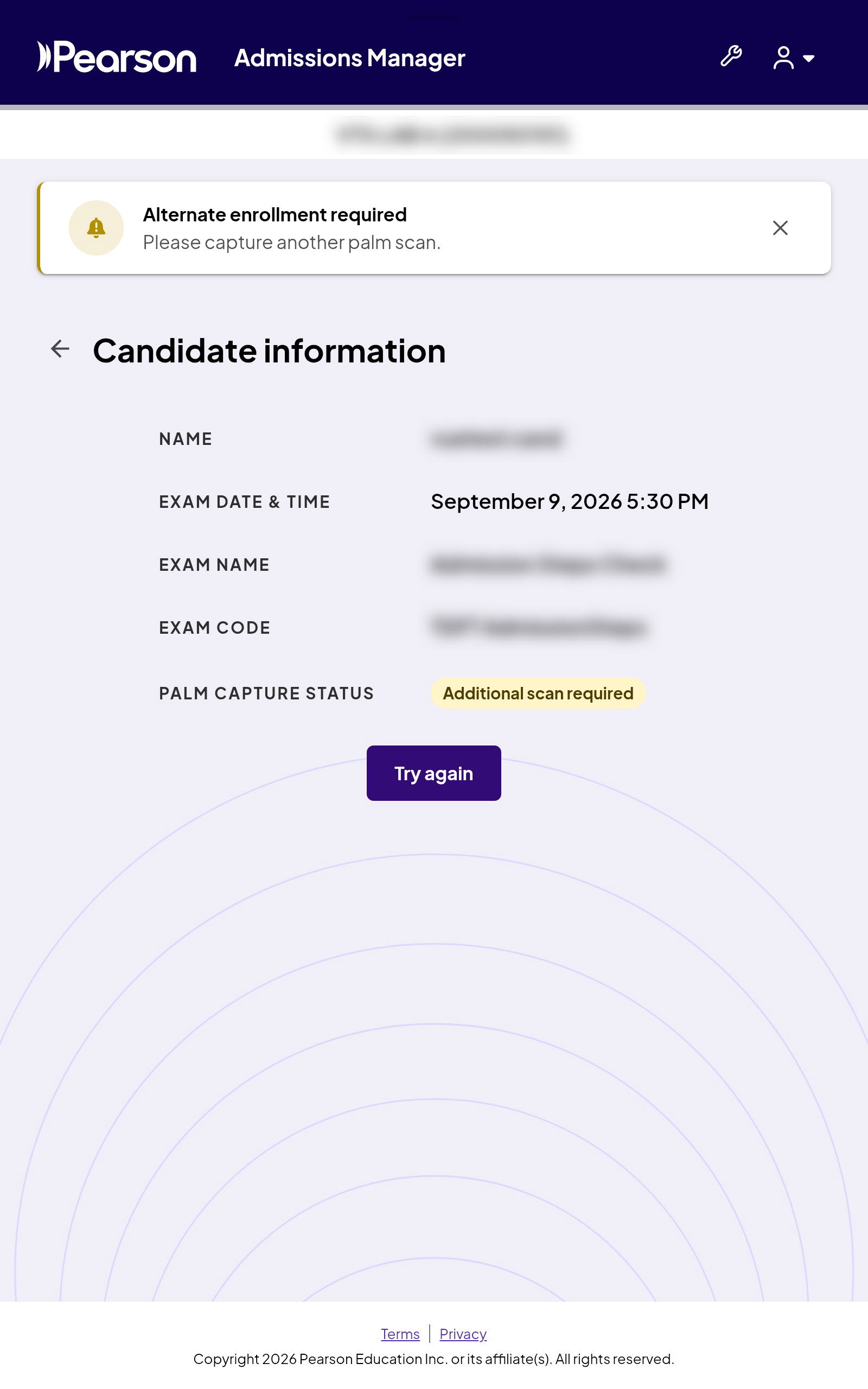
Follow these steps when alternate enrollment is required during admissions:
- On the admissions tablet, select Try again.
- Follow the instructions on the admissions tablet to complete the alternate enrollment process for palm scan.
The steps for the alternate enrollment process are the same steps you use to enroll a first-time candidate. (For more information, see Steps to capture palm scan for enrollment.)
- If the alternate enrollment process is successful, the following notification appears at the top of the screen on the admissions tablet: "Palm scan successfully captured for [candidate name] as an alternate enrollment." If you see this notification, you do not need to capture the candidate's palm scan through the backup palm scan process. Continue to step 3.
- However, if the alternate enrollment process is not successful, see Troubleshooting palm scan issues for next steps. Do not attempt the backup palm scan process unless VSS directs you to do so.
- Set the admissions tablet on the desk and return to Admissions Manager on the administration workstation computer.
- Select Next in Admissions Manager.
- When the following message appears on the screen in Admissions Manager, recheck the candidate's primary ID. Compare the photo on the ID to the photo on the screen. (If there is no photo on the screen, compare the photo on the ID to the candidate in front of you.)
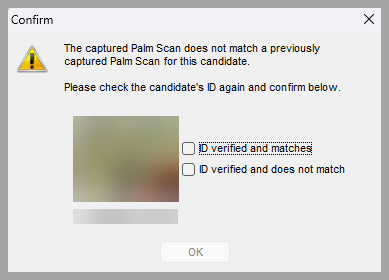
- If the photos match, select the ID verified and matches check box and then select OK. Continue to step 6.
- If the photos do not match, select the ID verified and does not match check box and then select OK. Complete all remaining admission steps to collect all admissions data, but do not allow the candidate to test and do not revoke the admission. Also, complete the following process:
- Create a copy of the candidate's primary ID.
- Create a case, selecting these options:
Exam delivery
Candidate error or misconduct
- Attach the copy of the candidate's ID to the case if possible.
- Contact VSS. Ask them to retrieve the collected admissions data for the candidate and to attach the files to the case.
|
|
You cannot close the message without confirming the candidate's identity. |
- After the admission process is complete, create a case, selecting these options:
Admissions/Check-in
Palm failure
Palm scan match failure
Include the following information in the case:
- Indicate whether the palm scan was successfully collected from the candidate through the alternate enrollment process. If the alternate enrollment process was not successful, make sure to attach the backup palm scan file to the case if VSS directed you to use the backup process.
- Explain that you verified the candidate's ID.
Copyright © 2026 Pearson, Inc. or its affiliates. All rights reserved. Pearson Confidential.